Push Groundplan Quantities to create a New Quote.
Setting Default Account and Tax Rates
Accounts and Tax Rates are allocated to Counts, Lengths, Areas, Additional Items and Additional Labour.
- All Parts with an Account will appear in a Xero Quote
- Multiple Accounts can be assigned within a Stage
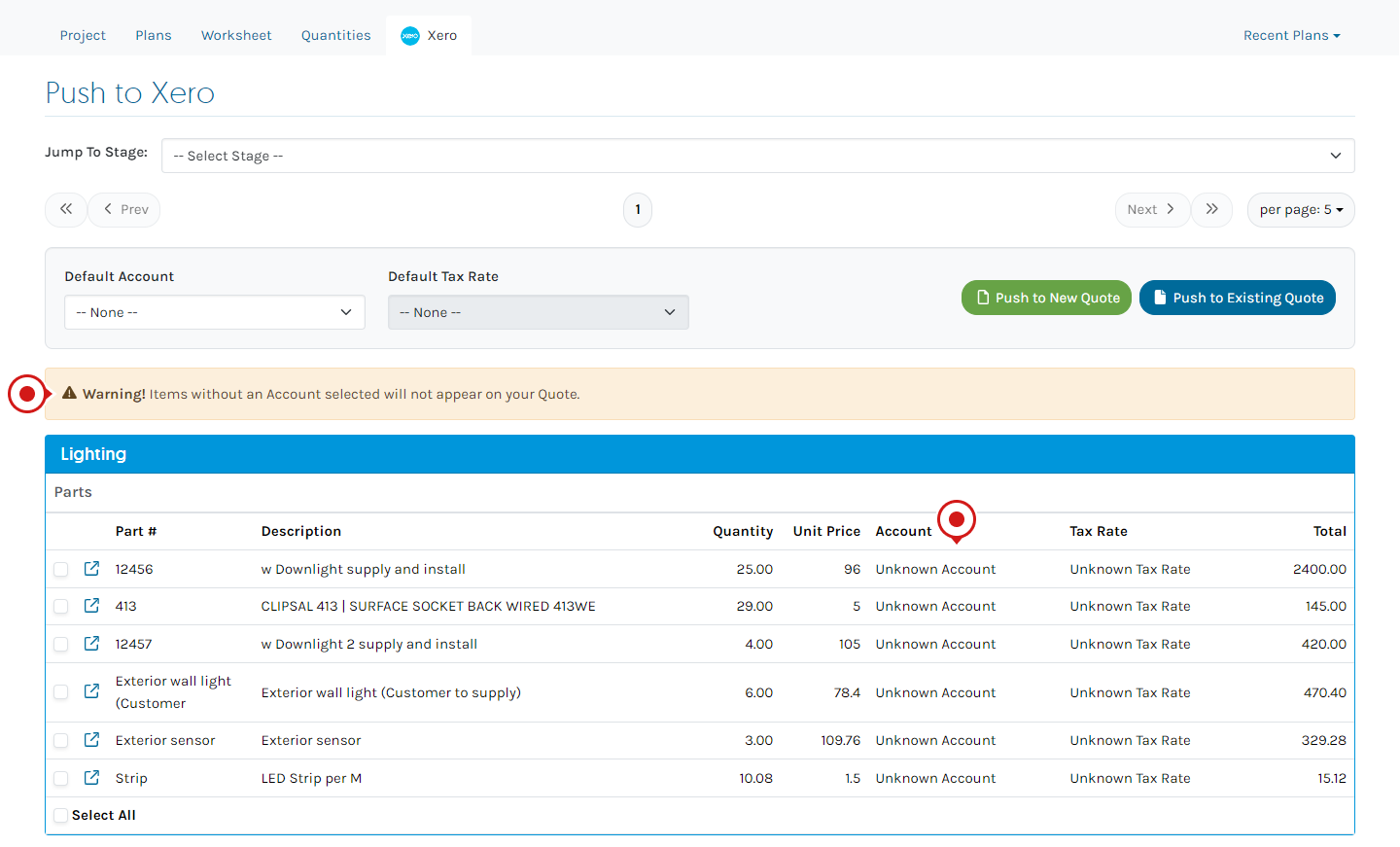
A warning appears if any Accounts or Tax Rates are not set.

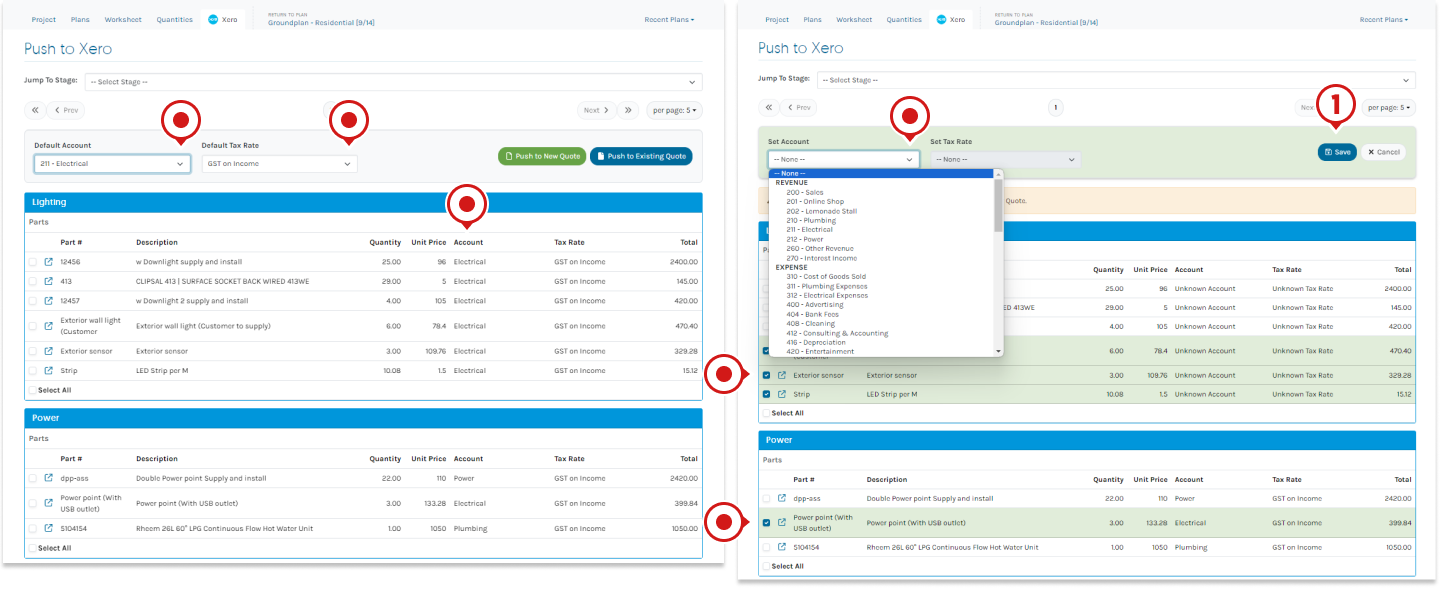
- From the Xero Tab
- If all require the same Account or Tax Rate
Select the Default Account / Default Tax Rate
OR - When multiple Accounts are required
Select Multiple Parts across different Stages and click Set Account, make the Account selection, then click Save
Repeat as needed
Push to a New Quote
Once Accounts and Tax Rates are assigned to all components requiring inclusion in the Xero Quote, push to a New Quote. Stage names appear at the end of the Product Name within the Quote.
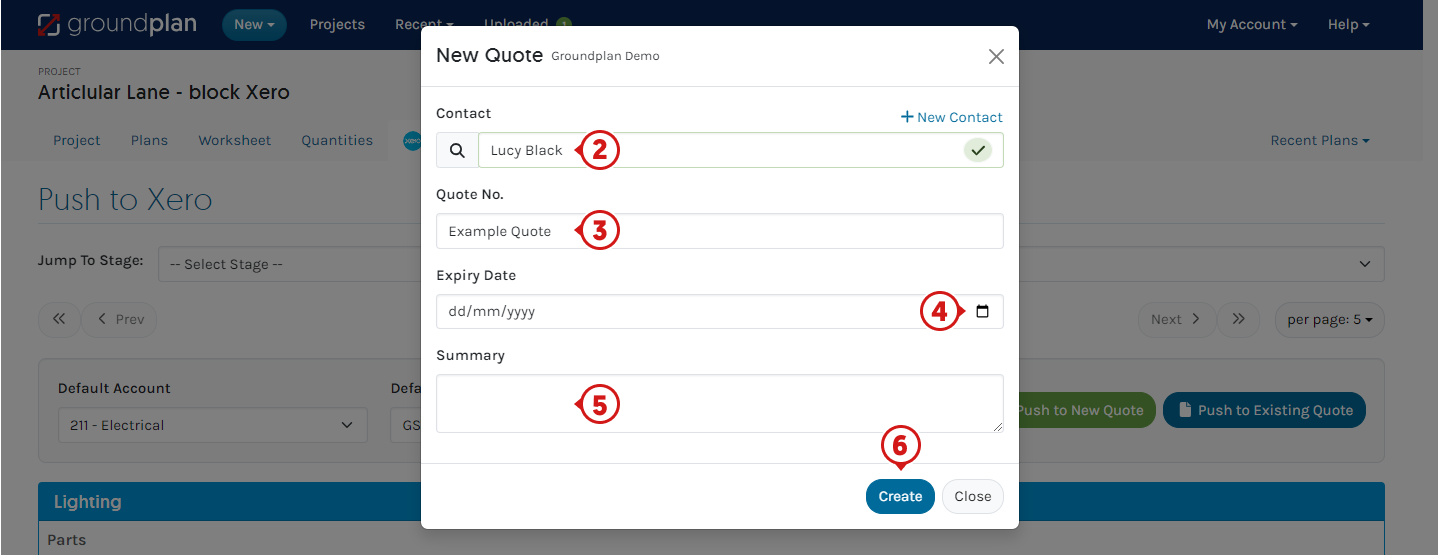
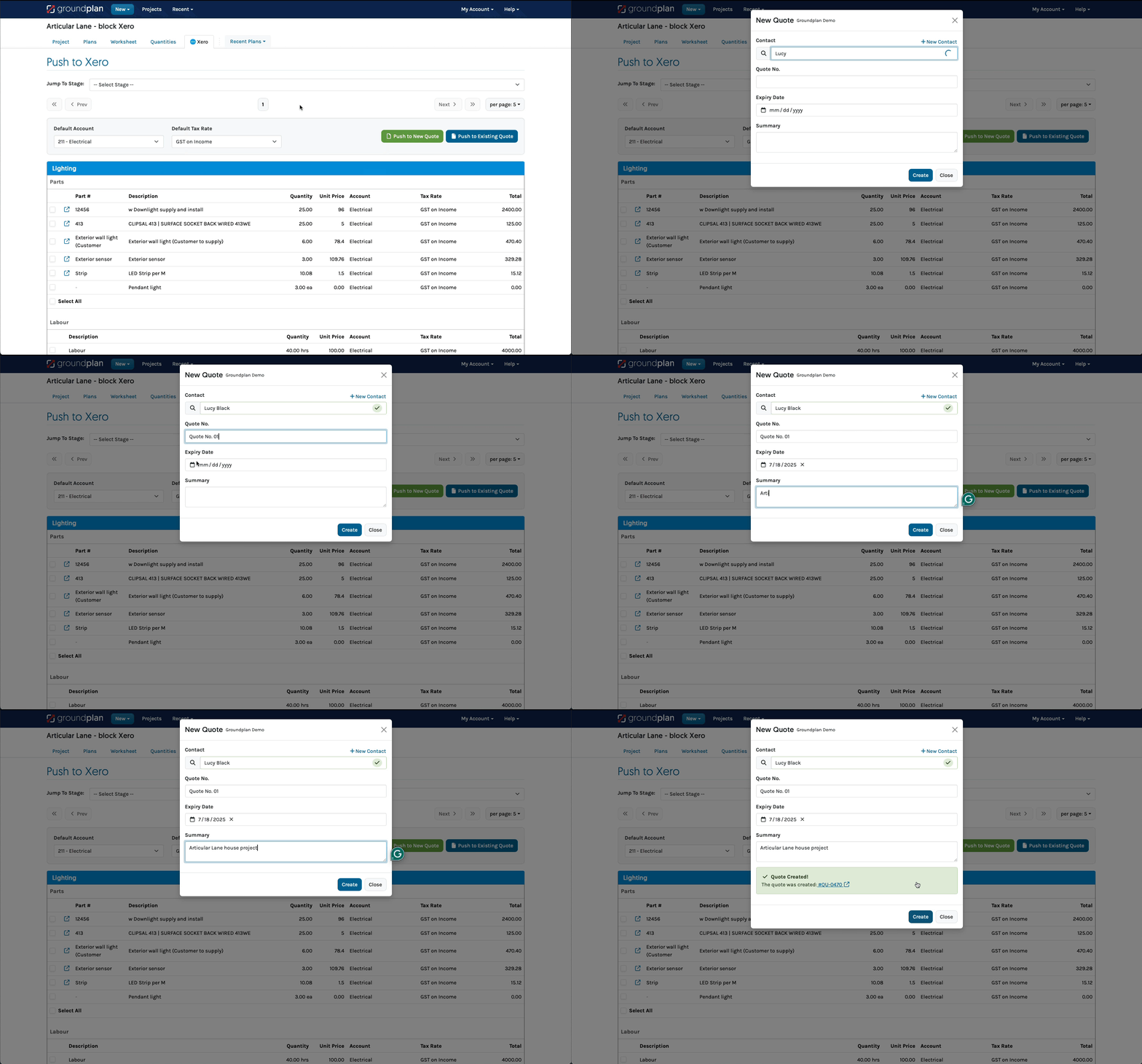
- Click Push to a New Quote
- Enter the first 3 letters of the Customer name, then click to select
Alternatively, click + New Customer - (optional) Enter the Quote No.
If no number is populated, this will auto-fill - (optional) Set an Expiry Date
- (optional) Complete the Quote Summary
- Click Create
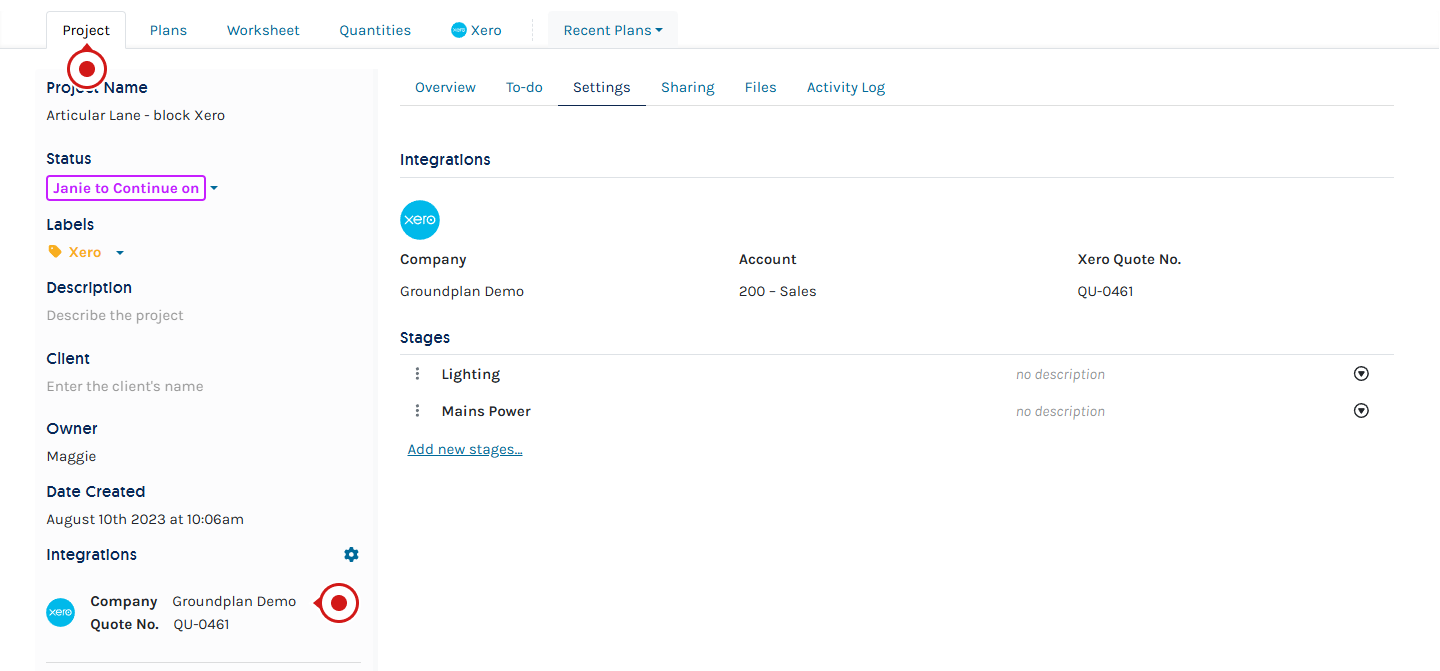
Ensuring a Xero Company is set on a Project
From the Project Tab from inside a Project, the Xero Company should be set.
Frequently Asked Questions
I want to add Additional Parts and Labour to the Quote that aren't shown on a Plan. Can I do that?
If Revisions are part of your workflow, add them within Groundplan so they don't need to be added within Xero after every Revision. Examples include but are not limited to sundries, travel or equipment hire, and extra contractor hire.
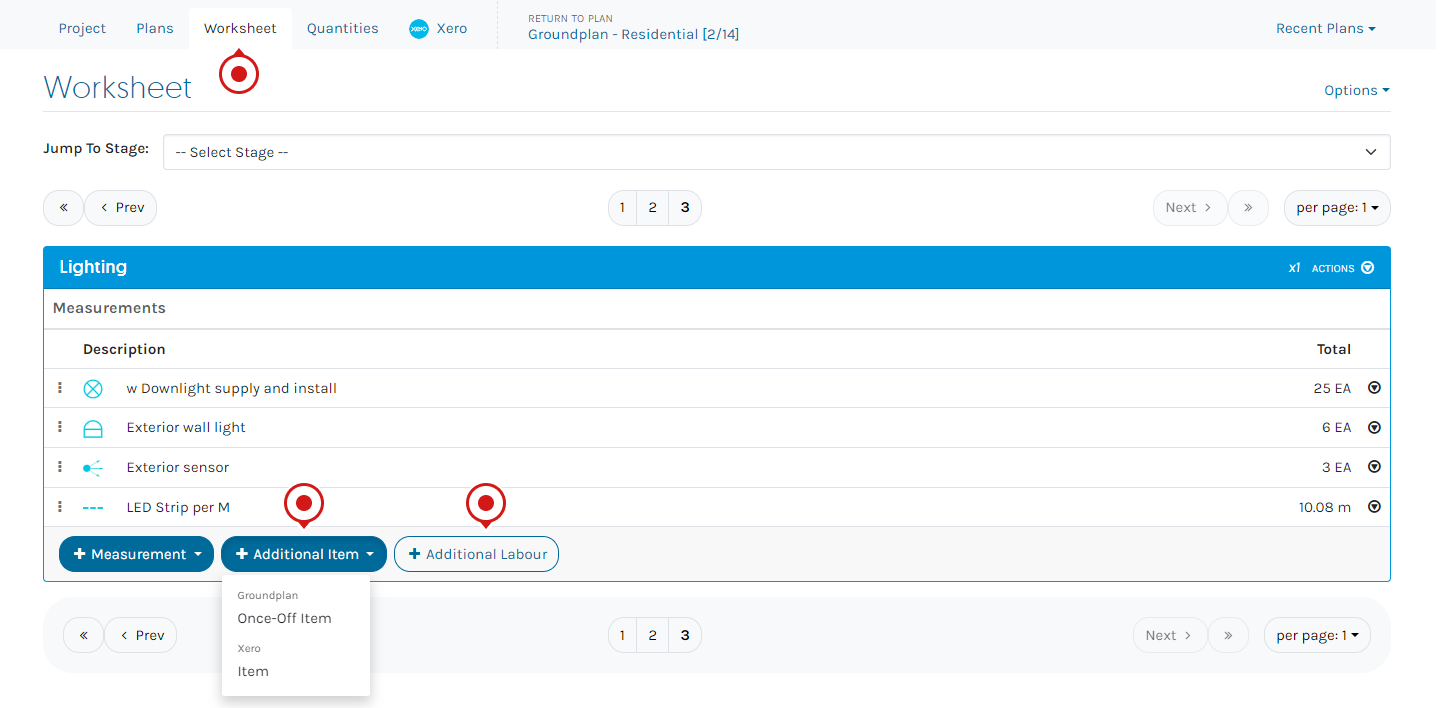
On the Worksheet tab, Additional Items and Labour can be added to individual Stages. These are items not usually populated on the Plan and not accounted for in your Xero items but are required in the Quote in Xero.
To do that:
- Click the Worksheet
- Choose from Groundplan Once-off Items or a Xero Item and + Labour
If I update my pricing in Xero, will this automatically update?
If you have used a Take-off Template for your Project, then no, it will not automatically update.
Pricing is saved at the time of Take-Off Template creation. If your pricing has changed in Xero, update the Parts in your Template by relinking them.
If Xero Items are linked to multiple Measurements, they will need to be removed from all Measurements and then relinked again.
I have used the same Xero Item under multiple Groundplan Measurements. Why can I only see it once in my Xero Quote?
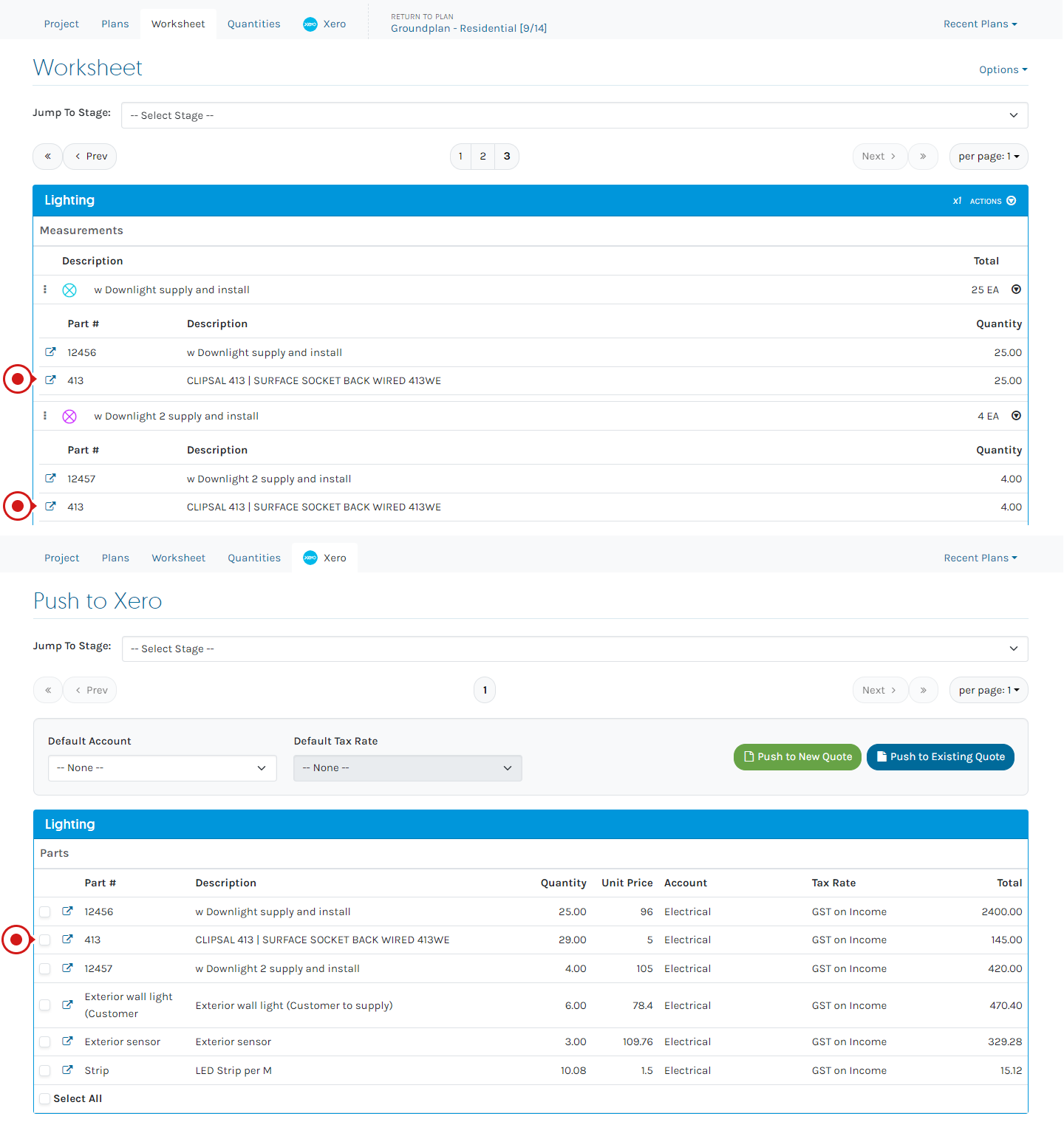
They have Grouped together. The same Xero Item appearing under multiple Measurements in the same Stage will Group together on the Xero tab and when pushing to a Xero Quote.
This is also the same for Labour.
For example, a surface socket for multiple Measurements in the same Stage will Group together:
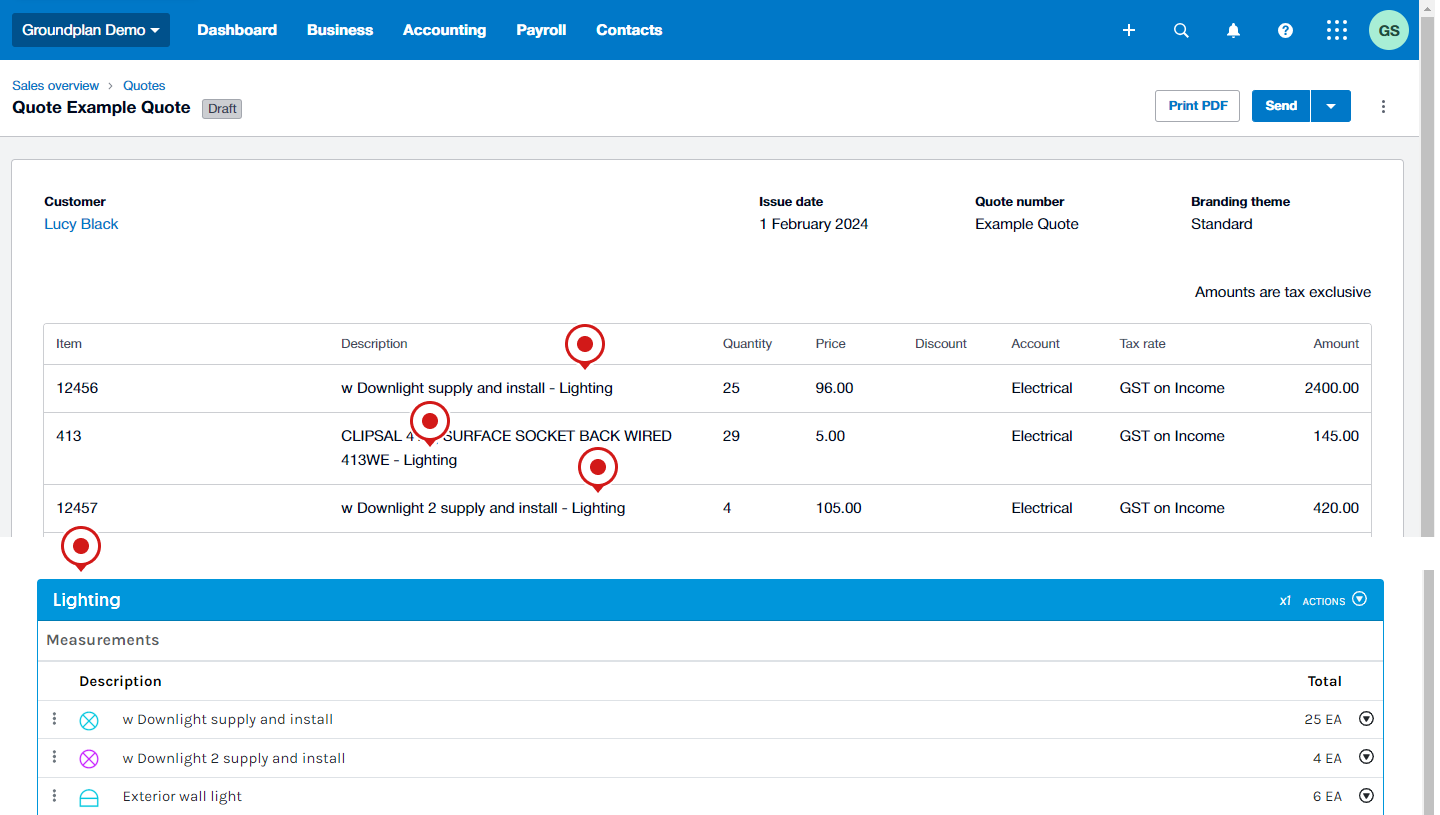
Why is the word "Lighting" appearing after all my products?
The Stage names appear at the end of the Product Name within the Quote.
If you prefer not to display a name at the end of a Stage, we recommend using a period (full stop) as the Stage name. This will be visible on the Quote but less intrusive than a name. This will also populate on a Legend if it is used on a Plan.
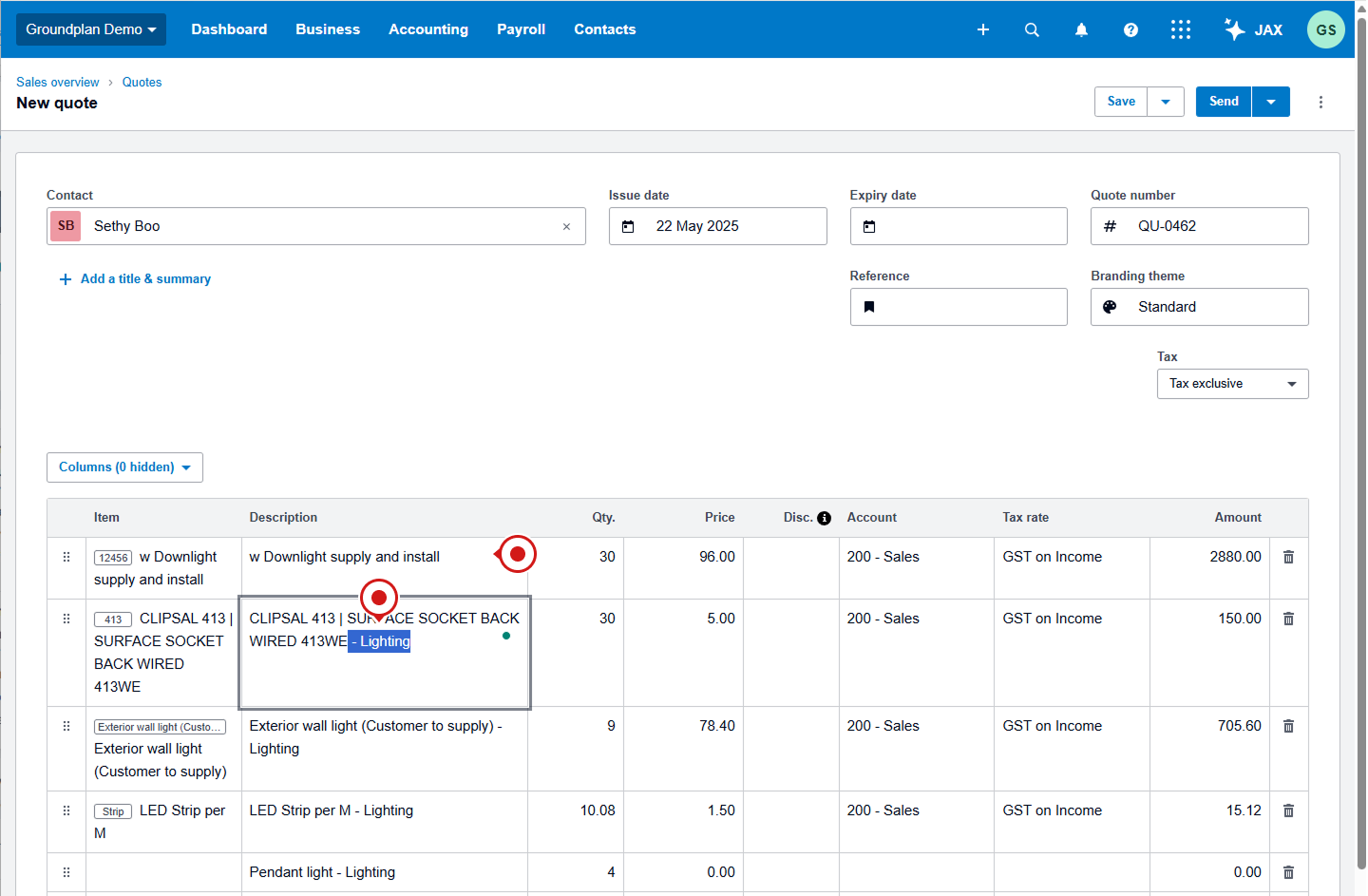
Alternatively, the names can be edited out of the Quote once in Draft form within Xero.
Why is my Quote not pushing to Xero?
Firstly, check there has been an Account set against all Parts to appear in the Xero Quote and that the warning has disappeared (if all are set).
Secondly, within Xero, check that the Account you are trying to send your Quote to has not been archived.
If individual Xero items do not appear in your Quote, please check if they have been deleted or archived from the Xero Products and Services within the Xero Account.
Please contact our friendly support team at Help > Send us a Message for further guidance.
Arrange your free training by clicking Help > Send us a Message. Our trainers are ready to help with:
- Streamlining workflows
- Time-saving strategies
- Maximising your subscription
Alternatively, visit the Groundplan Academy here for self directed courses.