Creating Take-Off Templates is a time-saving option to populate Projects with frequently used Measurements. When integrated with QuickBooks, Measurements can be linked manually to Items and Bundles.
Related Articles: Using Items and Bundles on Plans | Pushing to a Quote in QuickBooks.
Creating Take-Off Templates
The two most common approaches to creating Take-off Templates linked to QuickBooks Items are Copying from an existing Stage or Building a new Take-off Template.
1. Copying an existing Stage to a Take-Off Template
When Measurement Parts are already linked to QuickBooks Items, Take-Off Templates are created by Copying an existing Stage in a Project. If Measurement Parts are added as Groundplan Parts instead of QuickBooks linked items, Groundplan will send those quantities to QuickBooks as single line items.
- From the Worksheet tab, click Stage Actions
- Click Copy to new Template
.png)
- Rename and click Copy Stage
- Click +Measurement to add additional Count, Length and Area Measurements
2. Building a new Take-Off Template
- From the Groundplan home page, navigate to the Take-Off Templates tab
- Click +Take-Off Template

- Enter the Template Name
- Click +Measurement and click to add Count, Length or Areas
- Select Measurement Part Type and complete remaining fields
.png)
- Click Create
If additional Parts and Labour are required, click Create & Add More Parts
Applying a Take-off Template to a New Stage
- From within a Plan, click +Add Stage
- Enter Stage Name and click Apply Take-off Template
- Click Take-off Template name, review and de-select Measurements not required
- Click Create
Add additional Count, Length and Area Measurements if required
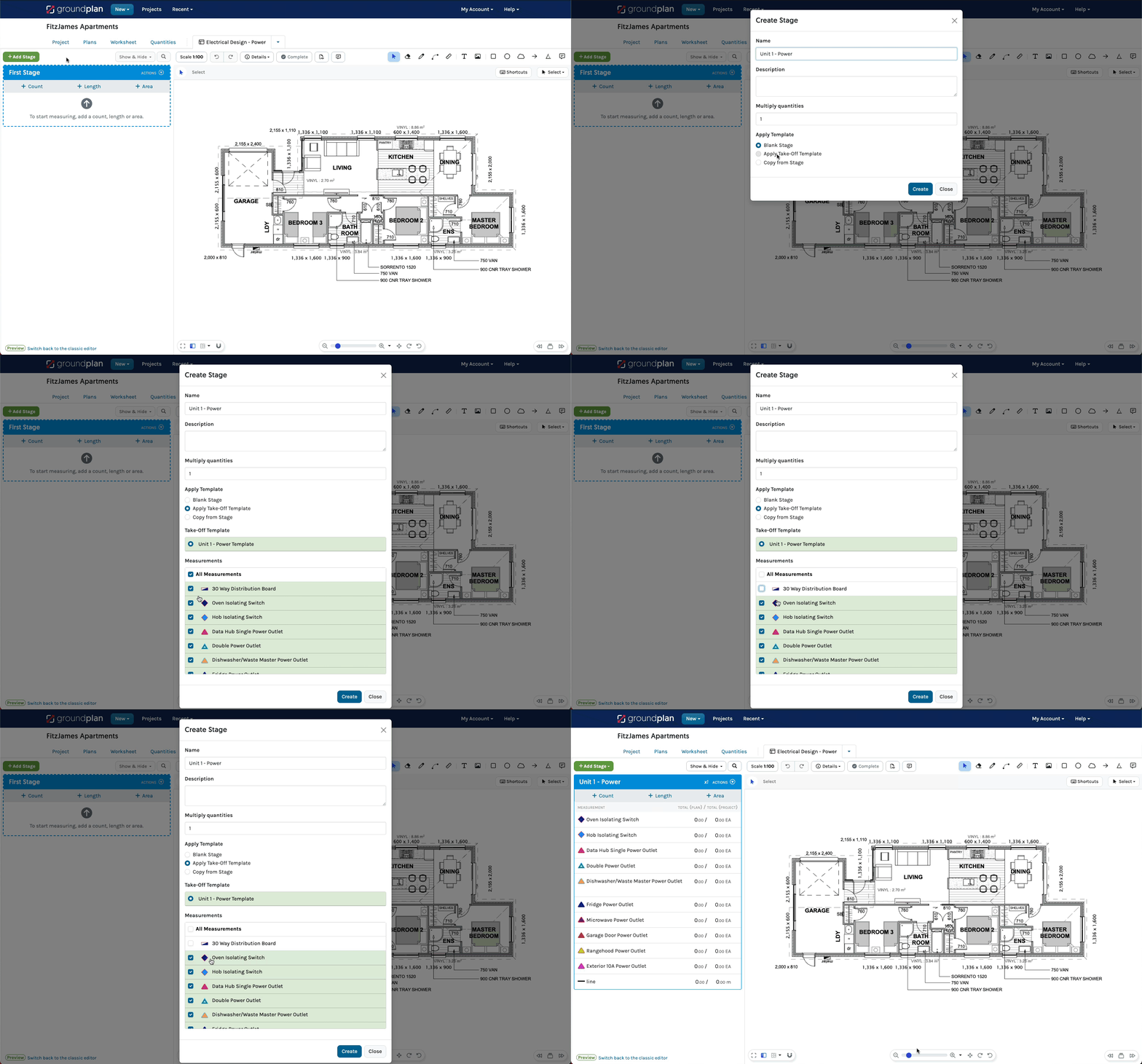
Applying a Take-off Template to an Existing Stage
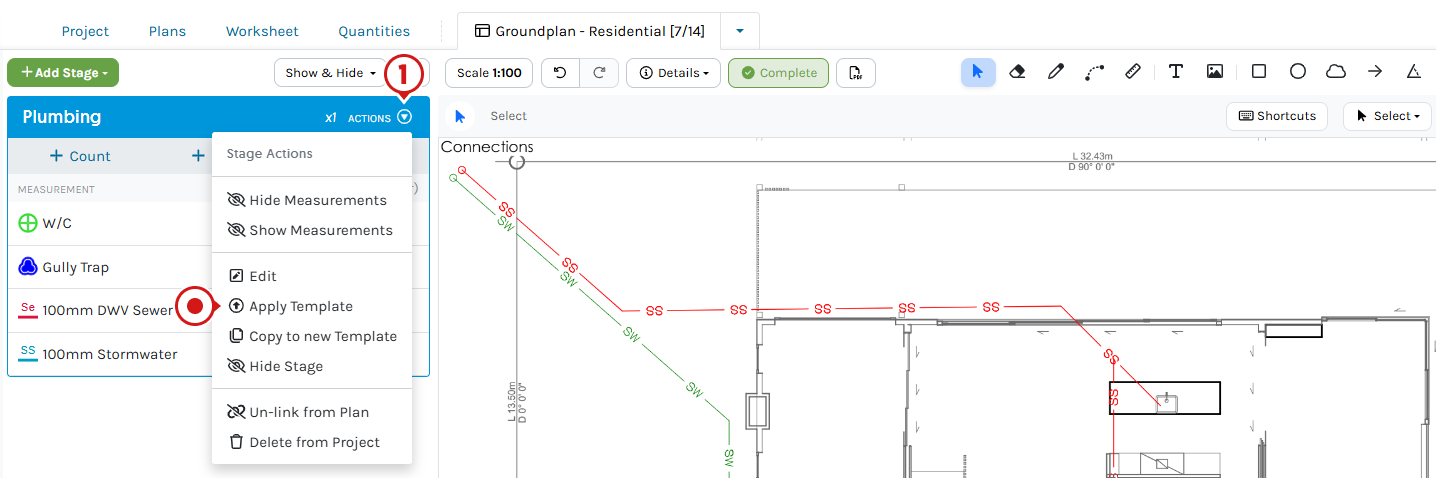
- From within a Plan, click Stage Actions and click Apply Template
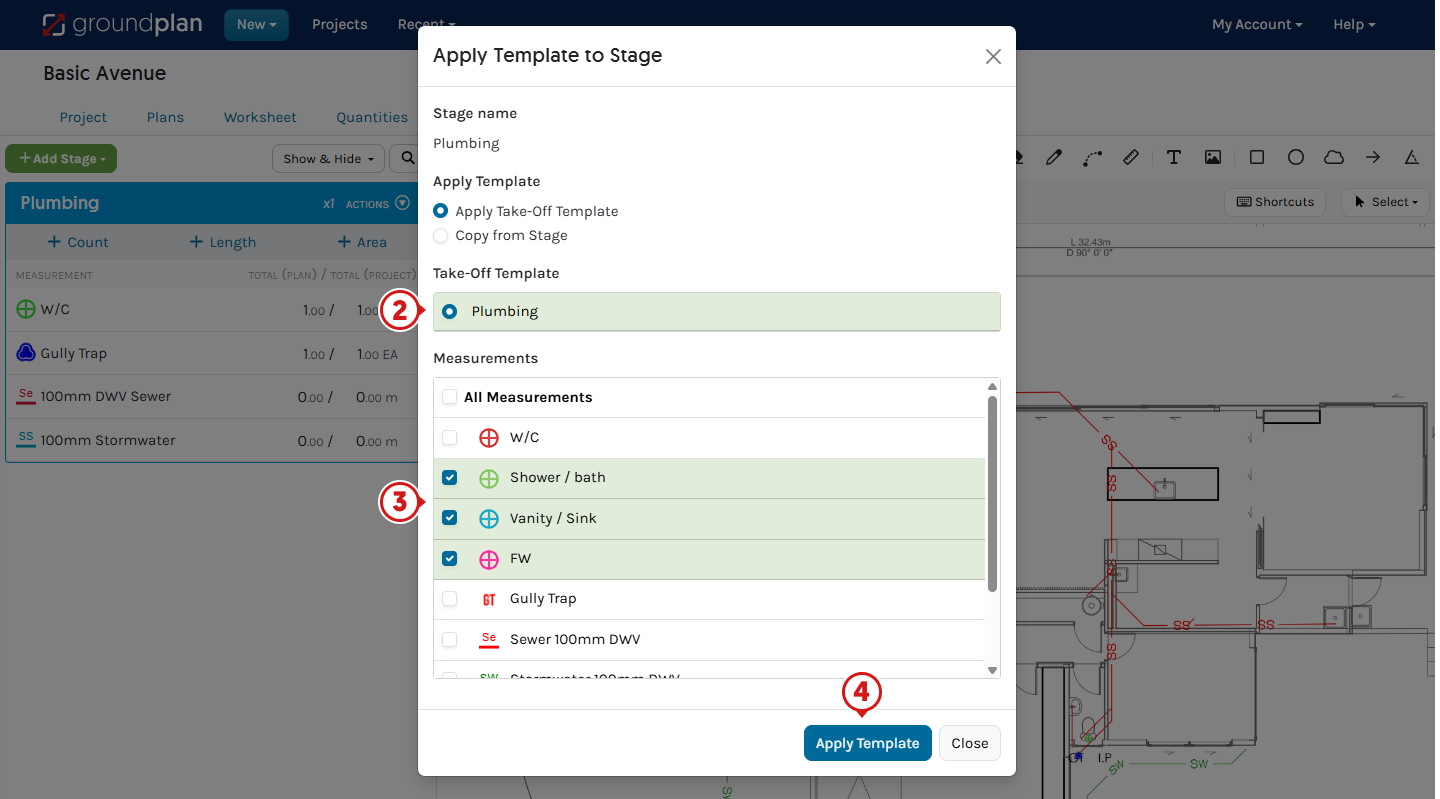
- Click Take-off Template name
- Review and/or de-select Measurements not required
- Click Apply Template
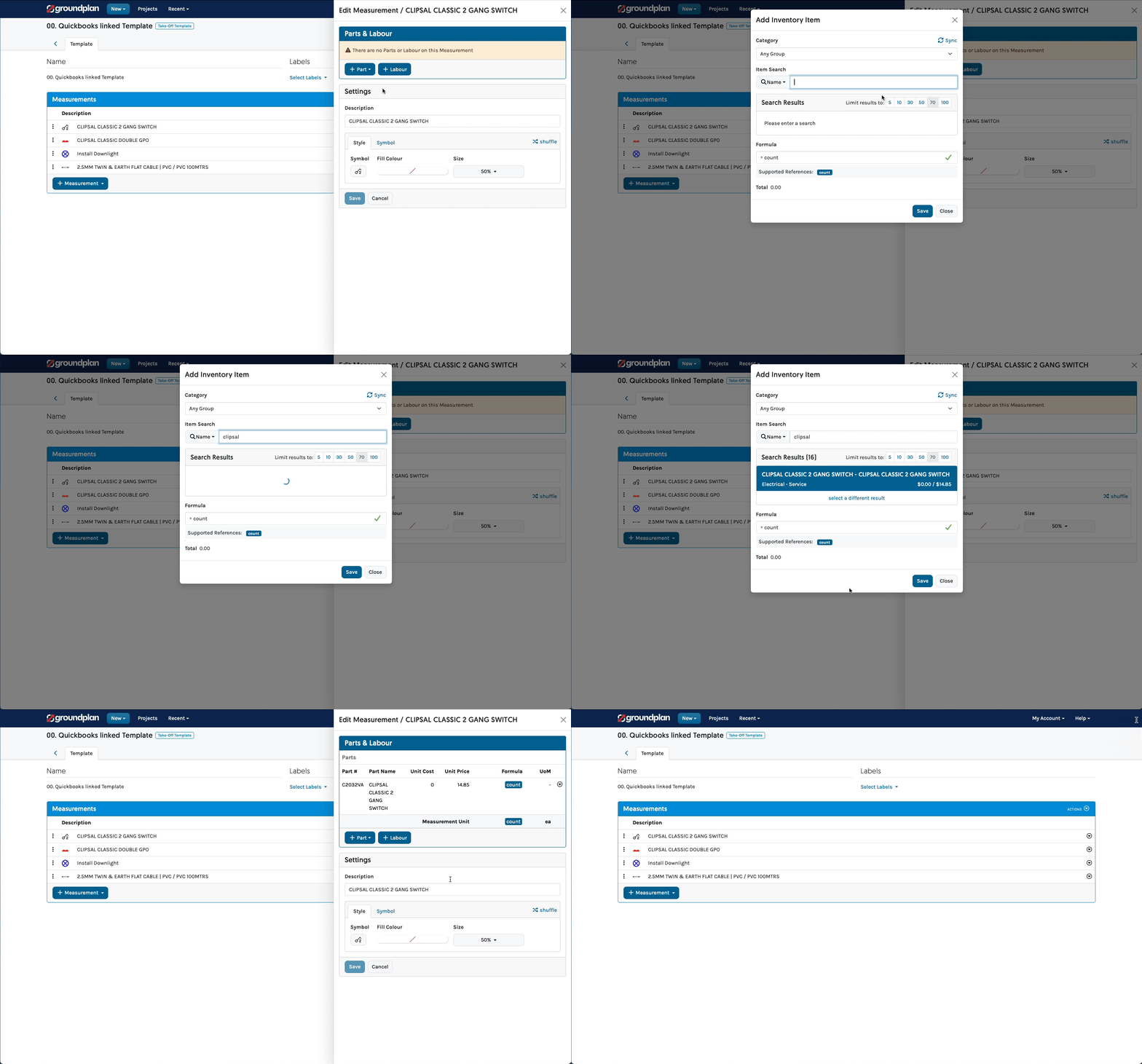
Linking Take-Off Measurements to QuickBooks Items
- From the Groundplan home page, navigate to the Take-Off Templates Tab
- Click Take-off Template name to amend
- Click Measurement name
- Click Part Actions and click Delete
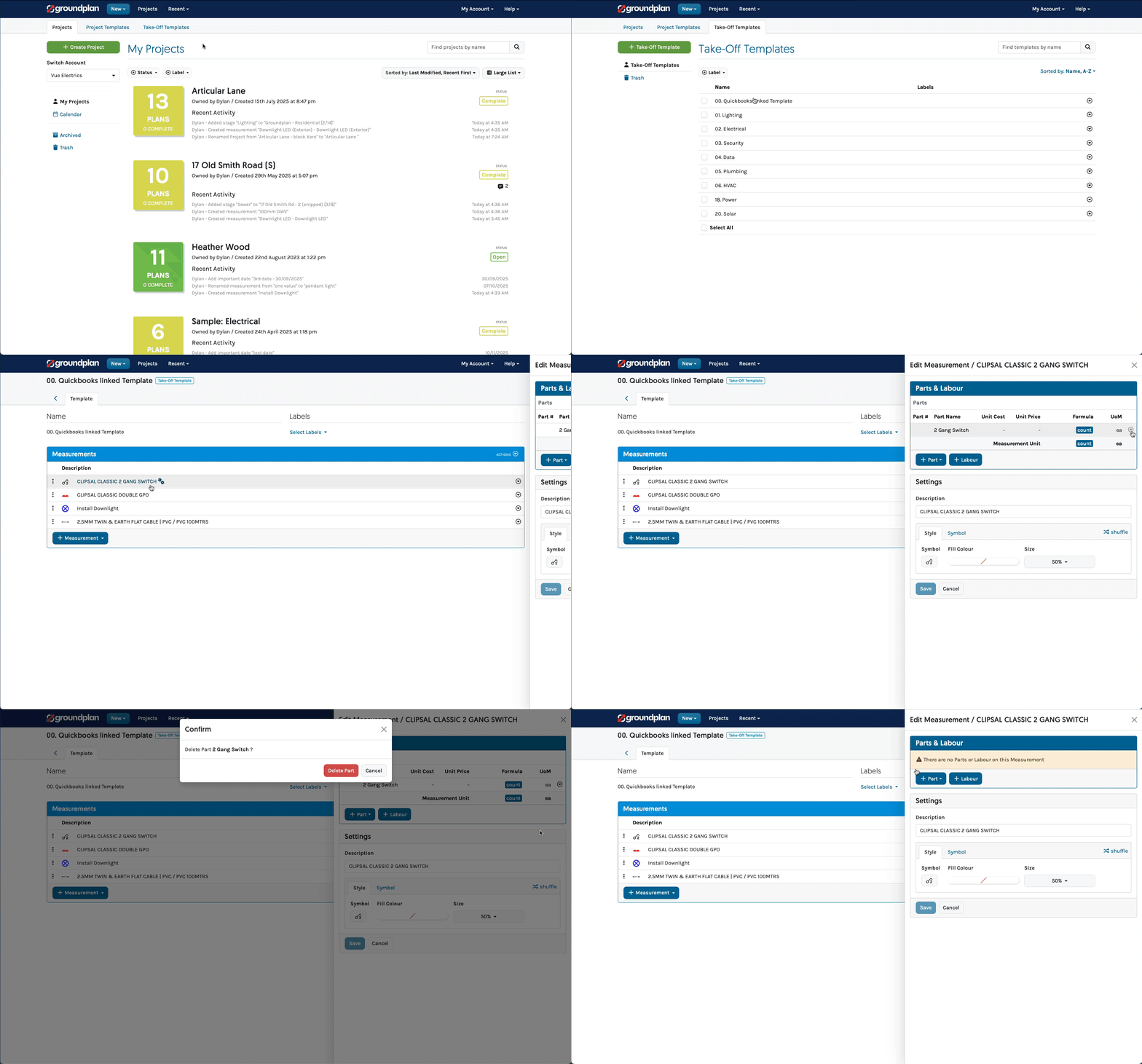
- Click +Part
- Select QuickBooks Item or QuickBooks Bundle
- Begin your search by entering three letters
- Click to select the item
- Click Save and continue as required for all other Measurements in the Template
QuickBooks Items and Groundplan Parts associated with multiple Measurements within the same Stage will Group as one line item(s) with a Total from all Measurements when pushed to a QuickBooks Quote.
Frequently Asked Questions
If I update my pricing in QuickBooks, will my saved Templates automatically update?
No.
Pricing is saved at the time of Take-Off Template creation. If your pricing has changed in QuickBooks, update the Parts in your Template by relinking them.
If I edit or rename the Measurement in Groundplan, will it automatically update my part in QuickBooks?
Renaming measurements on Groundplan will not send the updated name to QuickBooks.
These names will only appear in Groundplan on the Stage, Worksheet, Quantities, Take-off Templates and on the Legend.
If I add Additional Parts to a Measurement, will this go through to QuickBooks as one line item?
No.
When adding Additional Parts and Labour into Measurements, these items are sent to QuickBooks as individual line items.
Why won't my Additional Items and Additional Labour save in my Template when I use Copy to New Template?
Unfortunately, these are for the Stage only and will not be saved in a Take-off Template.
If you regularly need to add Additional Items and Additional Labour to a Stage, consider saving these separately into a Take-off Template, then apply to the Project from the Worksheet and adjusting the totals.
If I import all my Measurements using the CSV upload option with the same part numbers and descriptions, will they automatically link to my QuickBooks Items?
No. Measurements will need to be manually linked to QuickBooks Items. Follow the GIF above for the steps.